Exporting photo strips for DSLRBooth, Breeze and Darkroom
A practical guide to getting print-ready strips out of Stripbuilder and into the three most common photobooth apps - single and double strip, right dimensions, every time.
Every photobooth operator has their own booth software, and getting a design to print correctly is where a lot of time quietly disappears. This guide covers how Stripbuilder exports work and how they slot into DSLRBooth, Breeze and Darkroom.
One export, three destinations
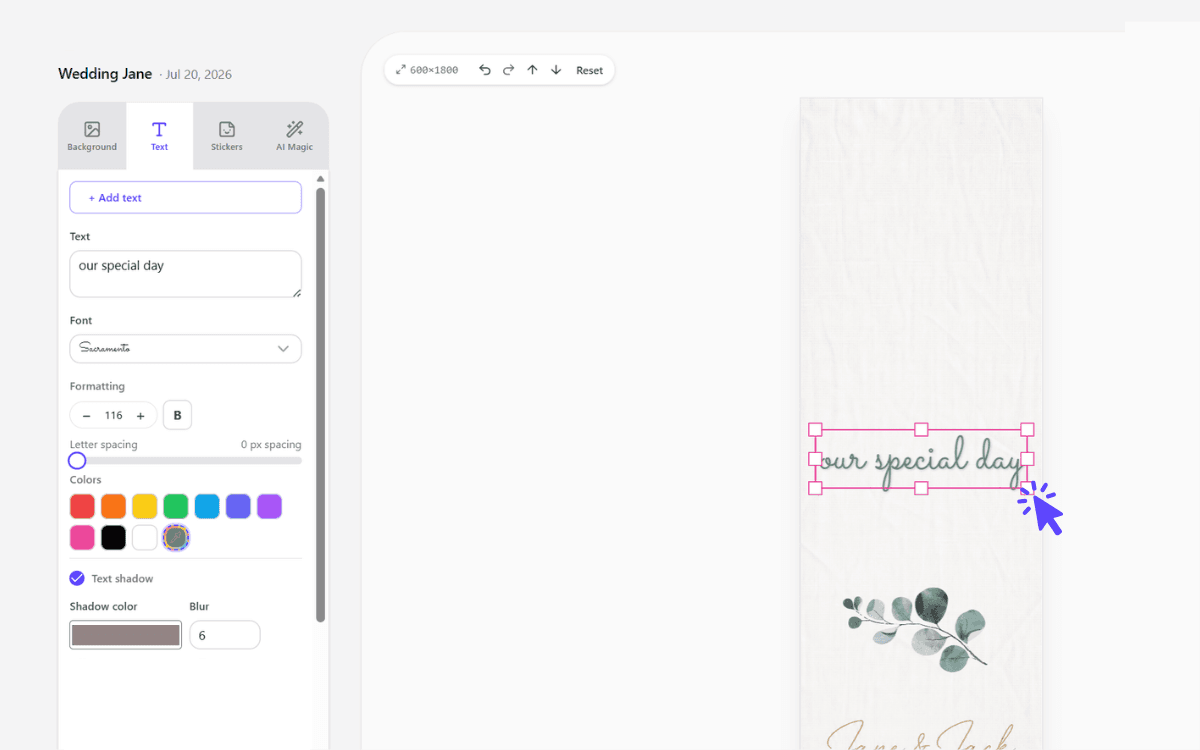
The canvas is the strip. What you see at 600×1800 is what comes out of the export.
Stripbuilder exports every finished design as a print-ready PNG. You choose a single strip or a double strip, and the file comes out at the dimensions your booth software expects. There's no manual resizing and no guessing about DPI.
Because the format is consistent, you build the habit once and repeat it for every booking - no per-event fiddling.
Single strip vs double strip
- Single strip - one column of photos, printed once per copy.
- Double strip - two identical columns side by side on a 4×6, cut down the middle for two copies per print.
Which one you use depends on your printer and how your booth software lays out the print. Most operators standardize on double strips for the classic "one for you, one for the guestbook" experience.
DSLRBooth
In DSLRBooth you load the exported PNG as your print template. Because Stripbuilder already matches the strip dimensions, the design drops straight into the print layout without cropping.
Breeze
Breeze users import the PNG as a background or overlay depending on how their event is configured. The consistent export size means the photo openings line up with your booth's capture positions.
Darkroom
Darkroom treats the export the same way - a print-ready layer sized to the strip. Load it, confirm the photo cells, and you're ready to shoot.
The point: stop redesigning per booking
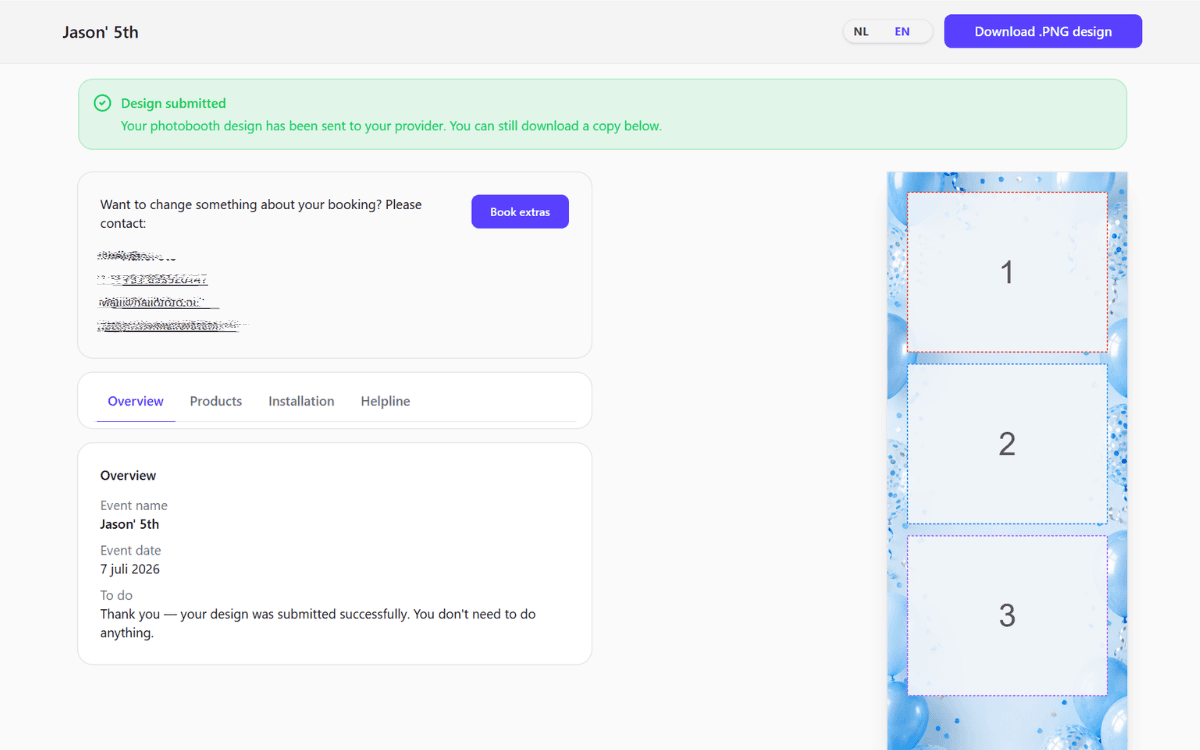
The client finishes their design and submits it; the print-ready PNG is waiting for you on the booking.
The real win isn't any single integration - it's that your client does the design work in the browser, and you get a consistent, print-ready file at the end. Whichever booth app you run, the export step looks the same every time.
Want to see it end to end? Start your 7-day free trial and export your first strip today.
More articles
Mid-October updates: a new look and bleed on export
The operator dashboard has been rebuilt around a calmer shell and simpler navigation, print-ready exports can now carry bleed for Breeze and DNP, and there's a yearly plan at €295.
New: the booking widget for your own website
No booking system? Now Stripbuilder is one. Put a single snippet on your site and clients book a free date, photobooth and extras themselves. Everything after that runs on its own.
September updates: your own branding, your own calendar
Put your own logo and colours in front of your clients, get your bookings into the calendar app you already use, and choose how you export your strips.